5 Image SEO Tips That Actually Move the Needle
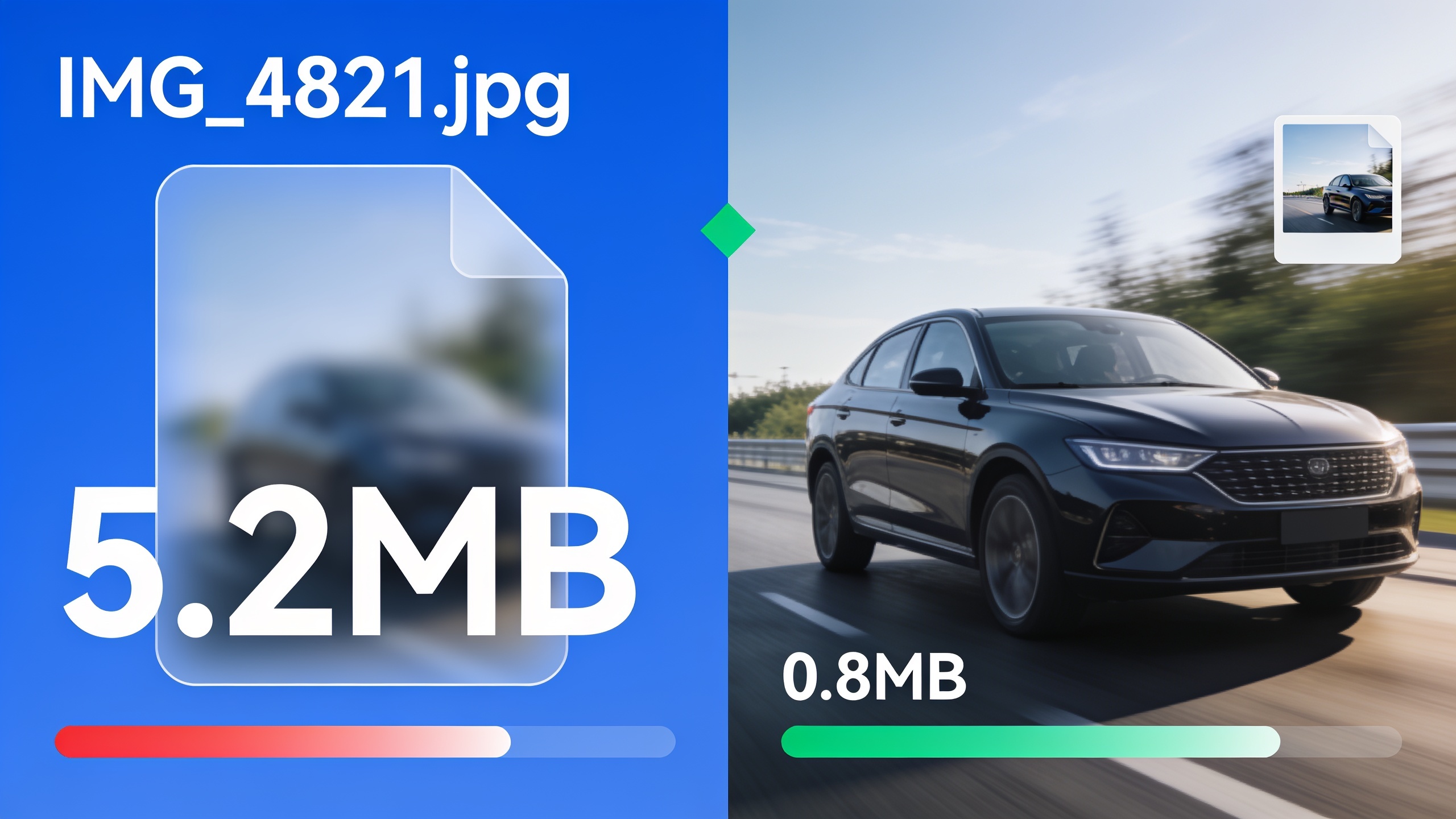
So let's define it, because the term gets thrown around loosely. Image SEO is the practice of optimizing the pictures, graphics, and screenshots on a page (file names, alt text, compression, structured markup) so search engines can actually understand them and your page still loads fast. Do it right and you get better rankings plus better accessibility. Do it wrong and one of two things happens: nothing at all, or you actively slow your site down and make life miserable for screen reader users.
This guide walks through five things that genuinely earn their keep. Writing alt text that helps instead of just ticking a box. Naming files the way search engines can actually read. Compressing images so they're not secretly wrecking your load times. Picking the right format and dimensions. And giving images enough context to show up in image search and rich results. All of it you can knock out this week, whether you're running a five-page brochure site or cranking out dozens of articles a month.
Table of Contents
- Why Image SEO Still Matters in 2024
- Tip 1: Write Alt Text That Describes, Not Stuffs
- Tip 2: Name Your Image Files Like a Human Would Search
- Tip 3: Compress Images Without Killing Quality
- Tip 4: Pick the Right Format and Dimensions
- Tip 5: Use Structured Data and Context to Win Image Search
- How Do You Know If Your Image SEO Is Working?
- Common Image SEO Mistakes to Avoid
- Frequently Asked Questions
Why Image SEO Still Matters in 2024
Image SEO still matters because images make up a big chunk of what your page actually weighs, they show up directly in Google Images and AI answers, and they hand search engines extra clues about what your page covers. Unoptimized images are one of the most common reasons pages load like molasses, and slow pages hurt both your rankings and your conversions.
Google's been pretty open about this through its Core Web Vitals stuff. Page experience signals feed into ranking, and one of the big ones is Largest Contentful Paint (LCP), which is very often driven by the biggest visible image on your page. So if your hero image is a 4MB PNG, congratulations, it's probably the single largest anchor dragging your LCP down. And image search itself is still a real traffic source. Product pages, recipe blogs, anything design-heavy pulls in visitors who found them through Google Images instead of a regular web search.
Then there's the AI angle, which nobody was really talking about a couple years ago. Answer engines like ChatGPT, Gemini, and Perplexity increasingly lean on pages that are well-structured and clearly labeled, and yes, that includes how your images are described. A page with vague or missing alt text gives these systems less to chew on when they're deciding whether you're a trustworthy source worth citing.
And last thing, image SEO overlaps a ton with accessibility. Alt text exists first and foremost so screen reader users know what an image shows. The SEO benefit is honestly a byproduct of just doing the decent, accessible thing correctly. That overlap is exactly why this belongs on every content team's checklist, not buried somewhere in the technical SEO team's backlog.
Tip 1: Write Alt Text That Describes, Not Stuffs
Alt text optimization means writing a short, accurate description of what an image shows, so both search engines and screen reader users get what it is and why it's there. It is not a keyword dumping ground. The single biggest mistake I see in image SEO is people treating alt text like a place to jam their target keyword in five times instead of, you know, describing the picture.
Quick refresher for anyone fuzzy on it: alt text (short for "alternative text") is an HTML attribute on an `` tag. Screen readers read it aloud, browsers display it when an image fails to load, and search engines use it to understand image content, since they can't actually "see" a picture the way you and I can. Good alt text is specific, short, and honest.
Here's the difference in practice, using a stainless steel French press:
- Bad: `alt="coffee maker french press best coffee maker buy coffee press"`
- Good: `alt="Stainless steel French press coffee maker with wooden handle, 34-ounce capacity"`
The second one tells a screen reader user exactly what's on their screen, gives Google real information to index, and still naturally includes the relevant terms. No stuffing required.
When to Leave Alt Text Empty
Not every image needs a description. Purely decorative stuff (a divider line, a background texture, some repeated icon that carries zero information) should have an empty alt attribute, `alt=""`. That tells screen readers to skip it entirely instead of announcing something useless like "decorative-line-2.png." And no, cramming keywords into decorative images does nothing for rankings. It just clutters things up for accessibility tools and can look a little sketchy to search engines.
Alt Text Length and Placement
Google doesn't enforce a hard character limit, but accessibility guidance generally suggests keeping alt text under about 125 characters, because some older screen readers truncate anything longer. Aim for one clear sentence or fragment: what the image shows, and if it matters, why it matters here. So "Screenshot of RobinRank's Autopilot dashboard showing a scheduled article queue" beats a lazy "dashboard screenshot" every time.
By the way, this clarity-over-density thing shows up all over SEO. It's the same logic behind good anchor text strategy, where over-optimizing exact-match anchors throws up the exact same red flags as over-optimizing alt text.
Tip 2: Name Your Image Files Like a Human Would Search
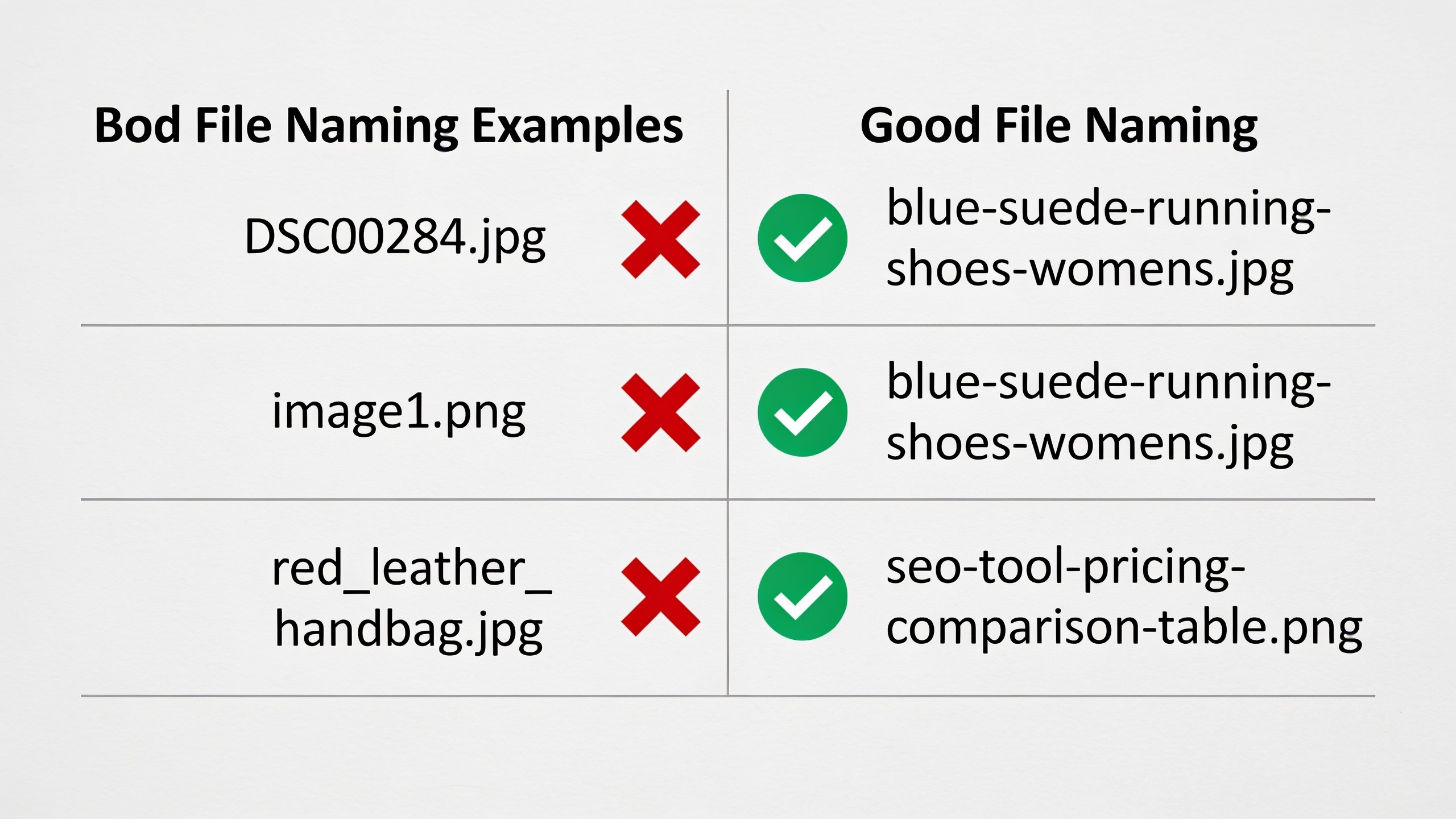
Descriptive, hyphen-separated file names give search engines a second, independent signal about what an image is, completely separate from alt text. So name your files in plain, searchable language before you ever hit upload. A file called `blue-suede-running-shoes-womens.jpg` tells Google a whole lot more than `DSC00284.jpg` or `image1.png`.
File naming slips through the cracks because it happens before the image even reaches your CMS, usually at the moment you export from a camera, design tool, or screenshot app. But it's one of the lowest-effort, highest-consistency wins around. Costs nothing, takes about two seconds an image.
File Naming Best Practices
- Use lowercase and separate words with hyphens, not underscores or spaces. So `red-leather-handbag.jpg`, not `Red_Leather_Handbag.jpg`. Google's guidance has long favored hyphens because search engines treat them as word separators, while underscores can get read as gluing two words together.
- Be specific, but don't pad it with the same keyword over and over. `content-marketing-funnel-diagram.png` is genuinely useful. `content-marketing-seo-content-marketing-strategy-diagram.png` is just stuffing with extra steps.
- Name the file after what the image actually shows, not the page topic. A screenshot of a pricing table inside an article about SEO tools should be `seo-tool-pricing-comparison-table.png`, not `best-seo-tools-2024.png` slapped onto every single image on the page.
- Rename everything before upload. Every icon, every screenshot. Those default camera and screenshot names carry exactly zero descriptive value.
File Names vs. Alt Text: What's the Difference?
People get tripped up here all the time. Why bother with both a descriptive file name and alt text if they sort of say the same thing? Because they do different jobs, and search engines weigh them as separate signals.
| Attribute | Purpose | Read By | Best Practice |
|---|---|---|---|
| File name | Identifies the image file itself at the server level | Search engine crawlers, before the page even renders | Short, hyphenated, descriptive (e.g., `email-marketing-workflow.png`) |
| Alt text | Describes the image's content and context on the page | Screen readers, search engines, browsers when images fail to load | Full descriptive phrase or sentence, contextual to the page |
| Title attribute | Optional tooltip text shown on hover | Sighted mouse users only, rarely search engines | Use sparingly; not a substitute for alt text |
| Caption | Visible text below or beside the image | All site visitors | Use for attribution, extra context, or emphasis |
Writing identical text for both isn't harmful, exactly, but it's a wasted opportunity. Let the file name nail the literal subject and let the alt text add the situational context that's specific to that page.
Tip 3: Compress Images Without Killing Quality
Image compression shrinks file size by stripping out redundant or less-visible data, and modern tools can typically cut image file sizes by 50–80% with no perceptible quality loss to the average viewer. That's a big deal for image SEO because page speed is a ranking factor, and on most websites, big uncompressed images are the single largest contributor to page weight. By a mile, usually.
There are two flavors of compression worth understanding.
Lossless compression only removes redundant data and keeps the image looking essentially identical. File size drops, nothing visible is lost. Perfect for logos, icons, screenshots with text, anything where sharp edges matter.
Lossy compression permanently tosses out some image data to hit much smaller file sizes. Great for photos, where the trade-offs are invisible to most people. Terrible for text-heavy graphics, where the artifacts get ugly fast.
A Practical Compression Workflow
- Resize before you compress. If your content area is 800 pixels wide, don't upload a 4,000-pixel photo straight off the camera and let CSS shrink it visually. The browser still downloads the whole file. Resize to the actual max display width first.
- Compress every image before upload with a dedicated tool, not by trusting your CMS to handle it. A lot of platforms apply barely any compression, or none.
- Match the compression level to the image. Photos can usually take more aggressive lossy compression than diagrams or screenshots with readable text.
- Check the file size after. For most in-content blog images, aim for well under 200KB. Hero images and complex graphics can run bigger, but keep them as lean as you can.
- Judge quality at actual display size, not zoomed in at 300%. If an artifact is invisible at normal viewing size, it's not worth doubling your file weight to avoid it.
Want content like this running on autopilot for your own site? Try RobinRank free — AI-written, SEO-optimized articles generated and published automatically, no credit card required.
And it's not just human visitors you're helping. Bloated images slow down crawling too. Googlebot has a finite crawl budget for every site, and heavy pages take longer to fetch and render, which can quietly affect how thoroughly and how often you get crawled, especially on bigger sites with thousands of pages.
Tip 4: Pick the Right Format and Dimensions
Picking the right format (WebP, JPEG, PNG, or SVG) has a bigger impact on file size than almost any other single call you'll make, and getting it wrong can double or triple your image weight before compression even shows up. Each format was built for a different kind of visual, and using the wrong one is one of the most common and most easily fixable image SEO mistakes.
WebP is Google's own modern format, and it generally produces smaller files than JPEG or PNG at comparable quality. Every major browser supports it now, so it's a strong default for both photos and graphics.
JPEG is still a solid pick for photographs and busy, colorful images, especially if your tools or workflow don't fully support WebP yet.
PNG should really be reserved for images that need transparency or crisp, flat-color edges, like logos. PNGs run much larger than JPEG or WebP for photographic content, so using one for a photo is usually a needless size penalty.
SVG (Scalable Vector Graphics) is ideal for logos, icons, and simple illustrations. It's resolution-independent and usually tiny, though it's no good for photos.
Matching Dimensions to Display Size
Format's only half the story. Actual pixel dimensions matter just as much. A responsive site should serve appropriately sized images to different devices using the `srcset` attribute, so a phone isn't downloading the same 2,400-pixel image you built for a desktop hero banner. People call this "responsive images," and most modern CMS platforms and frameworks support it out of the box. Though in my experience it usually needs to be explicitly turned on, so don't assume.
| Format | Best For | Transparency Support | Typical Relative File Size |
|---|---|---|---|
| WebP | Photos and graphics, general default | Yes | Smallest |
| JPEG | Photographs, complex color images | No | Small–Medium |
| PNG | Logos, flat-color graphics needing transparency | Yes | Medium–Large |
| SVG | Icons, logos, simple illustrations | Yes | Very small (vector) |
Tip 5: Use Structured Data and Context to Win Image Search
Adding structured data and strong surrounding context helps search engines connect an image to the right topic, which bumps up its chances of showing in Google Images, rich results, and AI summaries. Structured data here just means standardized markup (usually schema.org vocabulary) that explicitly tells search engines what an image represents. Think marking up a product photo as part of a Product schema, right alongside price and availability.
You don't strictly need structured data for basic image indexing. But for certain content types, recipes, products, and articles especially, it meaningfully boosts your odds of getting that enhanced visual treatment in search, like recipe cards or product carousels with your image baked right in.
Context Still Matters More Than Markup
Even with zero structured data, the text surrounding an image is one of the strongest contextual signals search engines have. An image sitting right next to a paragraph about "how to compress images for faster page load" is way more likely to be understood as relevant to that topic than the same image dumped into an unrelated section or a generic gallery page with no supporting text at all.
This is exactly why you can't really separate content quality from image optimization. A gorgeous image with killer alt text on a thin, sloppily organized page will underperform the same image on a thorough, well-structured article every time. Same principle as writing for how people actually search instead of how you imagine they'll phrase things. The piece on voice search optimization tackles this from the text side, matching your content structure to how real queries and answer engines actually work rather than optimizing for some abstract idea of "search engines."
Sitemaps and Discoverability
If you're running a site with a huge pile of visual content (photography portfolios, e-commerce catalogs, recipe blogs) it's worth including image info in an XML sitemap so those images actually get discovered and crawled. This matters most on pages where images load dynamically through JavaScript and might otherwise get skipped by a crawler that doesn't fully render the page.
How Do You Know If Your Image SEO Is Working?
You'll know it's working when page load speed improves, your image search impressions and clicks climb in Google Search Console, and your Core Web Vitals scores (LCP in particular) slide into the "good" range. These are measurable, verifiable things, not vibes.
Google Search Console has a dedicated Performance report filter for Search Type: Image, which shows impressions, clicks, and average position for queries that surfaced your images in Google Images specifically. If you've just finished an image optimization push, renaming files, rewriting alt text, compressing everything, this is the report to circle back to four to six weeks later and see whether image traffic actually budged.
For page speed, tools that report Core Web Vitals (Google's own PageSpeed Insights and the Core Web Vitals report inside Search Console) will show you LCP timing. If your biggest image just went from 2.5MB to 400KB after compression, you should see a matching drop in LCP time on that page, especially on mobile, where bandwidth is tighter.
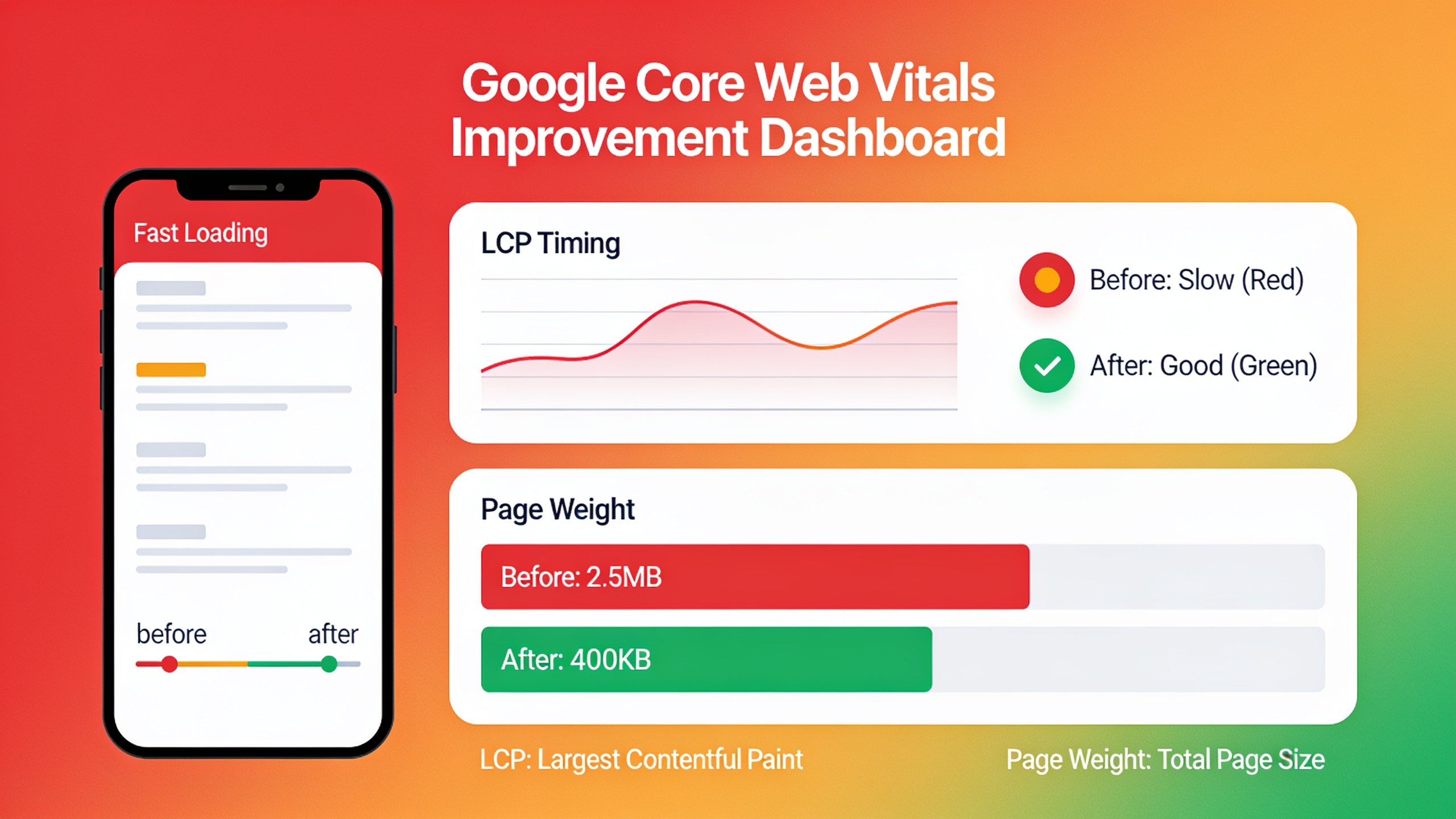
A simple before-and-after audit looks like this:
- Record your current LCP, total page weight, and image search impressions for a handful of pages.
- Apply the five tips above. Descriptive file names, rewritten alt text, compression, correct formats, and any structured data gaps you spot.
- Re-measure those same metrics four to six weeks later, giving Google enough runway to recrawl and re-index.
Common Image SEO Mistakes to Avoid
The most damaging image SEO mistakes are the ones you'd never catch in a quick site skim but that quietly compound across hundreds of pages: missing alt text, oversized uncompressed files, and generic file names dumped straight from a camera or screenshot tool.
Here's the shortlist worth auditing first, roughly in order of how much damage they do.
- Leaving alt text blank on images that mean something. Empty alt is correct for decorative stuff, but leaving it blank on a product photo, chart, or infographic means screen readers and search engines both walk away with nothing.
- Uploading full-res camera or design-tool exports as-is. A 6,000-pixel photo shown at 800 pixels is pure wasted bandwidth for literally every visitor.
- Using the wrong format, like a PNG for a photograph, which needlessly balloons your file size.
- Ignoring responsive delivery, so mobile visitors get stuck downloading desktop-sized files over a mobile connection.
- Keyword-stuffing your alt text or file names, which gives you no ranking bonus, looks manipulative to search engines, and actively wrecks the screen reader experience.
Notice that none of these need a developer. Most are editorial or workflow habits, the kind of thing a content team can bake into a pre-publish checklist right next to proofreading and link checks. Oh, and one more worth watching: skipping captions and surrounding context on images that would clearly benefit, which leaves search engines with less to go on when they're trying to tie the image to your page's topic.
Frequently Asked Questions
Does image SEO actually affect Google rankings, or just image search?
Both. Bad image optimization, oversized files especially, directly hurts Core Web Vitals like LCP, which Google has said is a page experience ranking factor for the whole page, not just image results. Good alt text and file names mostly influence whether an image itself shows up in Google Images, but the page speed piece reaches into standard web search rankings too.
How long should alt text be?
No official limit, but practical accessibility guidance says stay under roughly 125 characters so screen readers don't cut you off. Just describe what the image actually shows in one clear phrase. Don't obsess over hitting a specific length.
Should every image on a page have alt text?
Every meaningful one, yes. Purely decorative images, dividers, background patterns, repeated non-informational icons, should use an empty alt attribute (`alt=""`) instead. That tells screen readers to skip right past them rather than announce something pointless.
What's the ideal image file size for web pages?
There's no single magic number since it depends on the image's job on the page, but a common practical target for standard in-content images is well under 200KB after compression, with resizing to actual display dimensions done first. Hero images and complex graphics might need to run a bit larger, but keep them as lean as the visual quality allows.
Is WebP always better than JPEG or PNG?
WebP generally beats both on file size at comparable quality and works in all major modern browsers, so it's a strong default for most web images. That said, PNG still wins for images needing transparency with sharp edges, and SVG is still the better call for logos and simple icons no matter what advantages WebP has for photos.
---
Here's what I keep coming back to: image SEO doesn't need a redesign or a developer sprint to pay off. It needs consistency. Renaming files before upload, writing alt text that actually describes what's on screen, compressing before you publish, matching the right format to each type of visual, and giving images enough context to be understood. All of it scales cleanly whether you're publishing one article a month or fifty. The sites that treat these as a permanent part of their workflow, not a one-time cleanup, are the ones that keep compounding the benefit as their content library grows. The rest keep uploading IMG_4821.jpg and wondering why nothing's happening.
Ready to stop writing content by hand? Start your free RobinRank trial and get a full month of SEO-optimized articles published on autopilot.