Image SEO Checklist: Alt Text, File Names, and Compression Tips
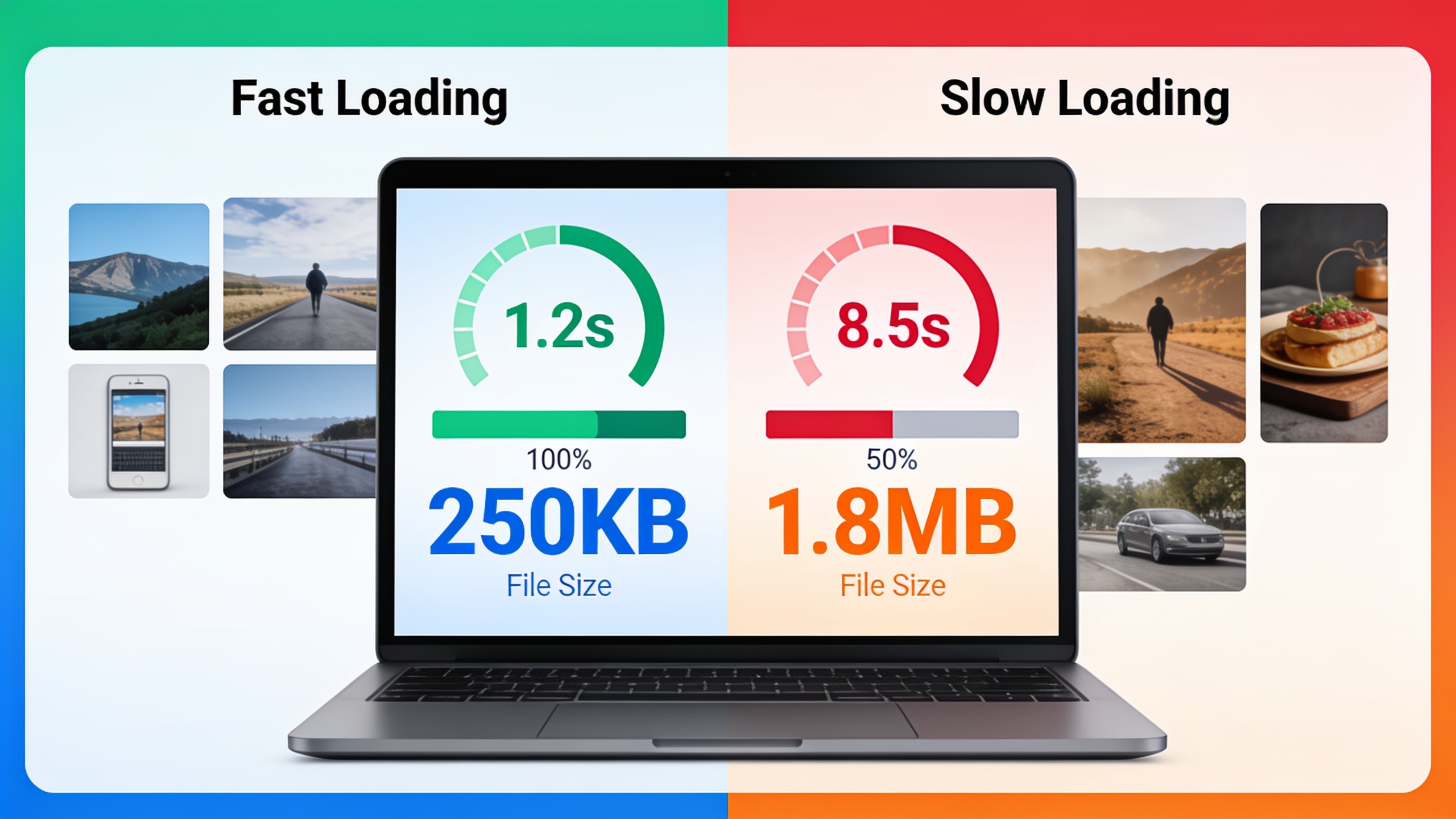
Why bother? Because search engines can't "see" a picture the way you and I can. They lean on the surrounding text, file metadata, and a bunch of technical signals to figure out what an image shows and whether it's worth surfacing in Google Images, AI answers, or regular web results. Meanwhile, bloated images are one of the biggest reasons pages crawl along at a painful speed, which drags down your Core Web Vitals and generally annoys everyone. So this article is really about squashing two problems, discoverability and performance, into one checklist you can run through.
Table of Contents
- What Is an Image SEO Checklist and Why Does It Matter?
- Alt Text Optimization: How to Write Alt Text That Helps Rankings
- File Naming Conventions for Image SEO
- How Do You Compress Images Without Losing Quality?
- Choosing the Right Image File Format
- Lazy Loading and Page Experience
- The Complete Image SEO Checklist (Quick Reference)
- Frequently Asked Questions
What Is an Image SEO Checklist and Why Does It Matter?
An image SEO checklist is basically a set list of technical and content habits (alt text, file naming, compression, format choice, and loading behavior) that you run every image through before it goes live. It matters because images pull triple duty: accessibility for people using screen readers, discoverability in image search and AI answer engines, and page speed, which Google bakes into its Core Web Vitals assessment.
Text has meaning a machine can read. Images don't, not really. A crawler can look at the pixels, sure, but it relies heavily on context clues, the alt attribute, the file name, nearby text, captions, structured data, to work out what's in the shot and whether it matches what someone searched for. When those clues are missing or lazy (think "IMG_4821.jpg" with zero alt text), you're just leaving traffic on the floor. That's especially true in visual-heavy niches like ecommerce, recipes, home improvement, and travel, where image search actually sends people your way.
And here's what a lot of people miss: images are usually the single biggest chunk of a page's total byte weight. A few uncompressed product shots or a giant hero banner can shove your load time past what Google's comfortable with, which quietly hurts your rankings through a bad Largest Contentful Paint (LCP) score. LCP is one of the three Core Web Vitals metrics Google uses as a page experience signal. Treating image SEO as a checklist instead of an afterthought means you catch both the discoverability problem and the speed problem before anything ships.
Alt Text Optimization: How to Write Alt Text That Helps Rankings
Alt text optimization means writing a short, accurate description in an image's HTML `alt` attribute so search engines and assistive tech can understand what the image shows. Alt text (short for "alternative text") gets read aloud by screen readers, shows up when an image fails to load, and helps Google index images for Google Images while adding context to the page around it.
Good alt text does three jobs at once. It helps visually impaired users, it gives search engines a text signal about the subject, and, done right, it reinforces the page's topic without turning into keyword soup. Google's own Search Central docs on image publishing guidelines basically say the same thing: describe the image accurately and concisely, the way you'd describe it to someone who can't see it.
What Makes Strong Alt Text
Specific beats generic every time. "Dog" tells a search engine almost nothing. "Golden retriever puppy playing with a red rubber ball in a backyard" gives it the subject, the setting, the action. A few rules I'd stick to:
- Describe, don't decorate. Say what's actually in the frame, the subject, what's happening, where it is, not some vague label.
- Keep it short. Aim for around 125 characters or fewer. Screen readers tend to cut off longer stuff anyway, and rambling descriptions just water down the signal.
- Drop "image of" and "picture of." Screen readers already announce that it's an image. Saying it again is pure redundancy.
- Don't stuff keywords. Repeating the same phrase across every alt attribute on a page looks manipulative and helps nobody.
- Use empty alt text for decorative junk. For spacers, background flourishes, or icons that carry no real info, use `alt=""` so screen readers skip right past them instead of reading out something pointless.
Alt Text vs. Title Text vs. Captions
People mix these three up constantly, but they're doing different things:
| Element | Purpose | Visible to users? | SEO value |
|---|---|---|---|
| Alt text | Describes image content for accessibility and crawlers | No (unless image fails to load) | High — direct ranking signal for image search |
| Title attribute | Adds a tooltip on hover | Yes, on hover (desktop) | Low — minimal SEO weight |
| Caption | Provides visible context under an image | Yes, always | Moderate — adds on-page text relevance |
For ecommerce sites, honestly, alt text on product images is one of the fastest wins you'll ever get, since product photos usually make up the bulk of a category page's images. If you're already doing a broader on-page pass on a store, it's worth pairing this with the tactics in 10 Ecommerce SEO Tips for Product Pages That Actually Move Rankings, which digs into how product imagery plays with the other ranking factors on category and product pages.
File Naming Conventions for Image SEO
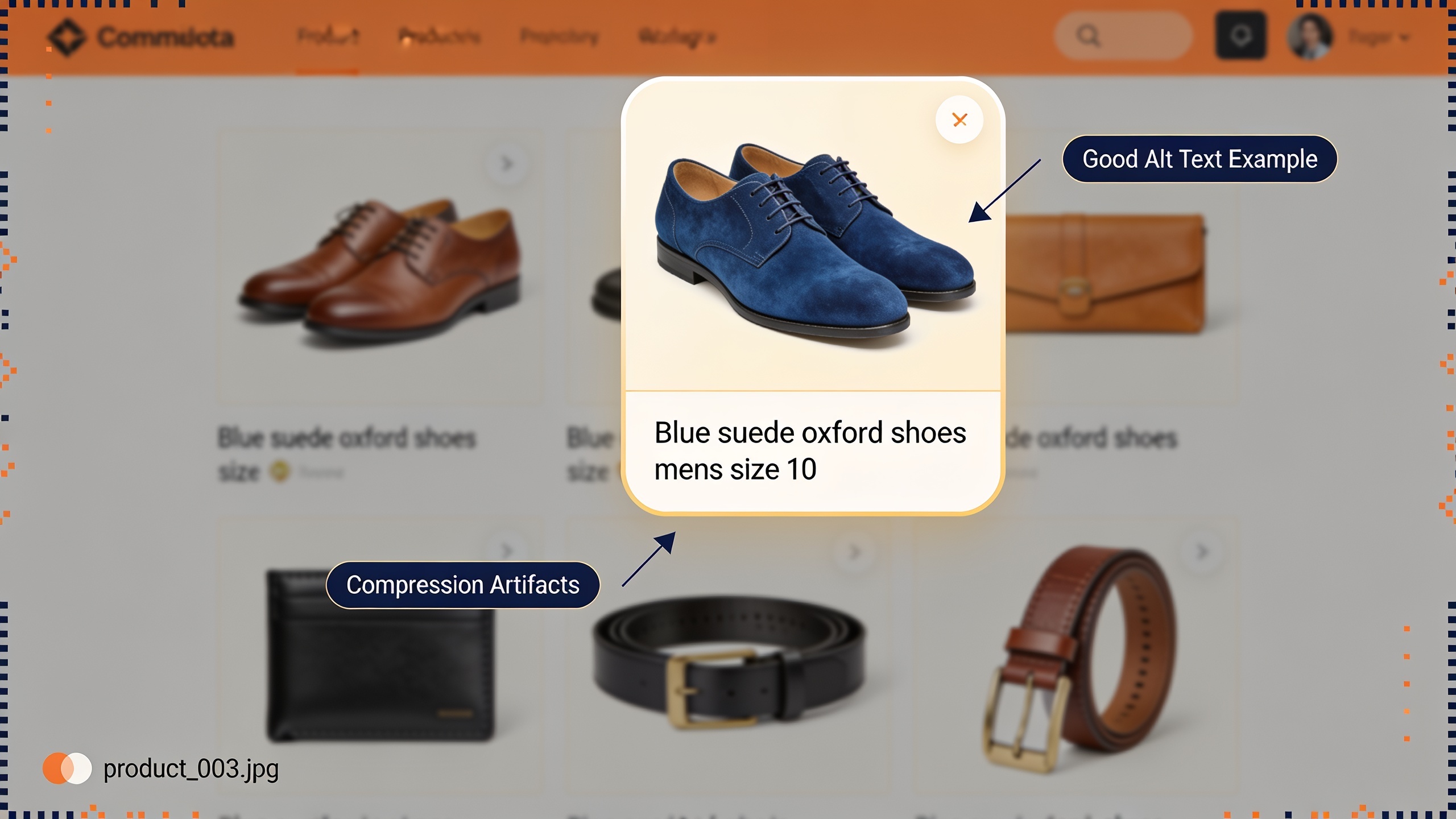
A search-friendly file name swaps out the camera's random string of numbers for a short, descriptive, hyphen-separated phrase that tells crawlers what the image shows before they even glance at the alt text. "IMG_00234.jpg" says nothing. "blue-suede-oxford-shoes-mens.jpg" hands Google an instant, machine-readable clue.
File names are one of the signals Google's image indexing uses to figure out context, alongside the surrounding text and alt attribute. Smaller signal than alt text, sure. But it costs you literally nothing to get right, because you control the file name the second you save or upload the thing.
Naming Best Practices
- Hyphens, not underscores. Google recommends hyphens as word separators because search engines read them as spaces. Underscores can get read as gluing two words together, which is not what you want.
- Keep it lowercase. Dodges duplicate-content headaches on case-sensitive servers and keeps your URLs tidy.
- Specific but brief. "red-leather-messenger-bag.jpg" beats both "bag.jpg" and some monster string trying to cram in every keyword variation you could dream up.
- No spaces or special characters. Spaces turn into "%20" in URLs, which looks ugly and creates inconsistent links. Stick to letters, numbers, and hyphens.
- Batch-rename before you upload. Migrating a big image library or relaunching a section? Rename in bulk with a desktop tool or a script instead of hand-editing each file after upload. This matters a lot during bigger technical projects. If you've got a full site move coming up, the SEO Migration Checklist: Moving Sites Without Losing Rankings covers how to handle image URLs, redirects, and renaming so you don't torch your indexed image traffic in the process.
Common File Naming Mistakes
A few habits quietly wreck image SEO even on sites that are otherwise dialed in. Reusing the same generic name (like "hero-image.jpg") across dozens of pages. Uploading images with tracking parameters baked into the name. And leaving default CMS gunk like "screenshot-2024-03-15-at-2.14.33-pm.png" exactly as it landed. Every one of those throws away a free context signal that could've helped both the image and the page it lives on get found.
How Do You Compress Images Without Losing Quality?
You compress images without visible quality loss by using "lossy" or "lossless" algorithms that strip out unnecessary data while keeping the details your eye actually notices, usually through a dedicated compression tool or a modern format like WebP or AVIF. The goal is the smallest file that still looks sharp at the size it'll display.
Image weight is one of the most common reasons pages load slowly, and page speed is explicitly part of Google's page experience signals via Core Web Vitals. Shrinking your image files directly improves Largest Contentful Paint, since LCP is very often decided by a big hero image, banner, or product photo sitting above the fold.
Want content like this running on autopilot for your own site? Try RobinRank free — AI-written, SEO-optimized articles generated and published automatically, no credit card required.
Lossy vs. Lossless Compression
Lossy compression permanently tosses out some image data to shrink the file hard, often 60-80% smaller, with a tiny, usually invisible dip in quality. That's your go-to for photographs and most web imagery. Lossless compression, on the other hand, only strips redundant data without ditching any actual visual information, so the image looks identical to the original but the size savings are more modest. Use it for logos, screenshots, and graphics with sharp edges or text, where any artifacting would jump right out at you.
Practical Compression Steps
- Resize before you compress. Never dump a 4000-pixel-wide camera photo into a 600-pixel-wide content column. Resize to the actual display dimensions first. This alone often slashes file size before you've even started compressing.
- Pick the right format for the content type (there's a comparison table just below).
- Run images through a real compression tool rather than trusting your CMS's default upload behavior, which usually doesn't compress hard enough.
- Set a quality target, don't just accept the default. For JPEGs, something around 60-80 out of 100 is often indistinguishable from full quality to most people while chopping the file size way down.
- Strip the junk metadata. Camera EXIF data, color profiles, embedded thumbnail previews, none of it helps your SEO or display, it just adds weight.
- Serve responsive sizes. Use the `srcset` attribute so browsers grab a size that fits the device instead of loading one giant file for every screen.
Choosing the Right Image File Format
The right format depends on what kind of image you've got: JPEG for photographs, PNG for graphics that need transparency, WebP for a modern balance of small size and wide browser support, and SVG for logos and icons that need to scale without going pixelated. Picking the wrong one is one of the most common reasons images end up heavier than they should be.
| Format | Best for | Typical file size | Transparency support | Browser support |
|---|---|---|---|---|
| JPEG | Photographs, complex color images | Medium (with lossy compression) | No | Universal |
| PNG | Screenshots, logos, graphics needing transparency | Larger than JPEG/WebP | Yes | Universal |
| WebP | General web use — photos and graphics | Smaller than JPEG/PNG at similar quality | Yes | Broad modern support |
| AVIF | High-compression photography | Often smaller than WebP | Yes | Growing modern support |
| SVG | Logos, icons, simple illustrations | Very small (vector-based) | Yes | Universal |
Modern formats like WebP and AVIF generally spit out smaller files than JPEG or PNG at the same visual quality, which is exactly why so many performance-obsessed sites now serve WebP by default with a JPEG or PNG fallback for older browsers. If your CMS or image pipeline doesn't auto-convert uploads to WebP, this is probably the single highest-leverage technical change you can make on a media-heavy site. Do it.
Lazy Loading and Page Experience
Lazy loading delays loading an image until it's about to scroll into view, instead of loading every single image the moment the page opens. That cuts your initial page weight, speeds up how fast things feel, and can genuinely improve Core Web Vitals on image-heavy pages like product listings, galleries, and long blog posts.
Setting it up is often as simple as slapping `loading="lazy"` onto an `` tag, a native HTML attribute that modern browsers support with no JavaScript library required. But there are a few nuances worth folding into your checklist, because lazy loading done badly can backfire:
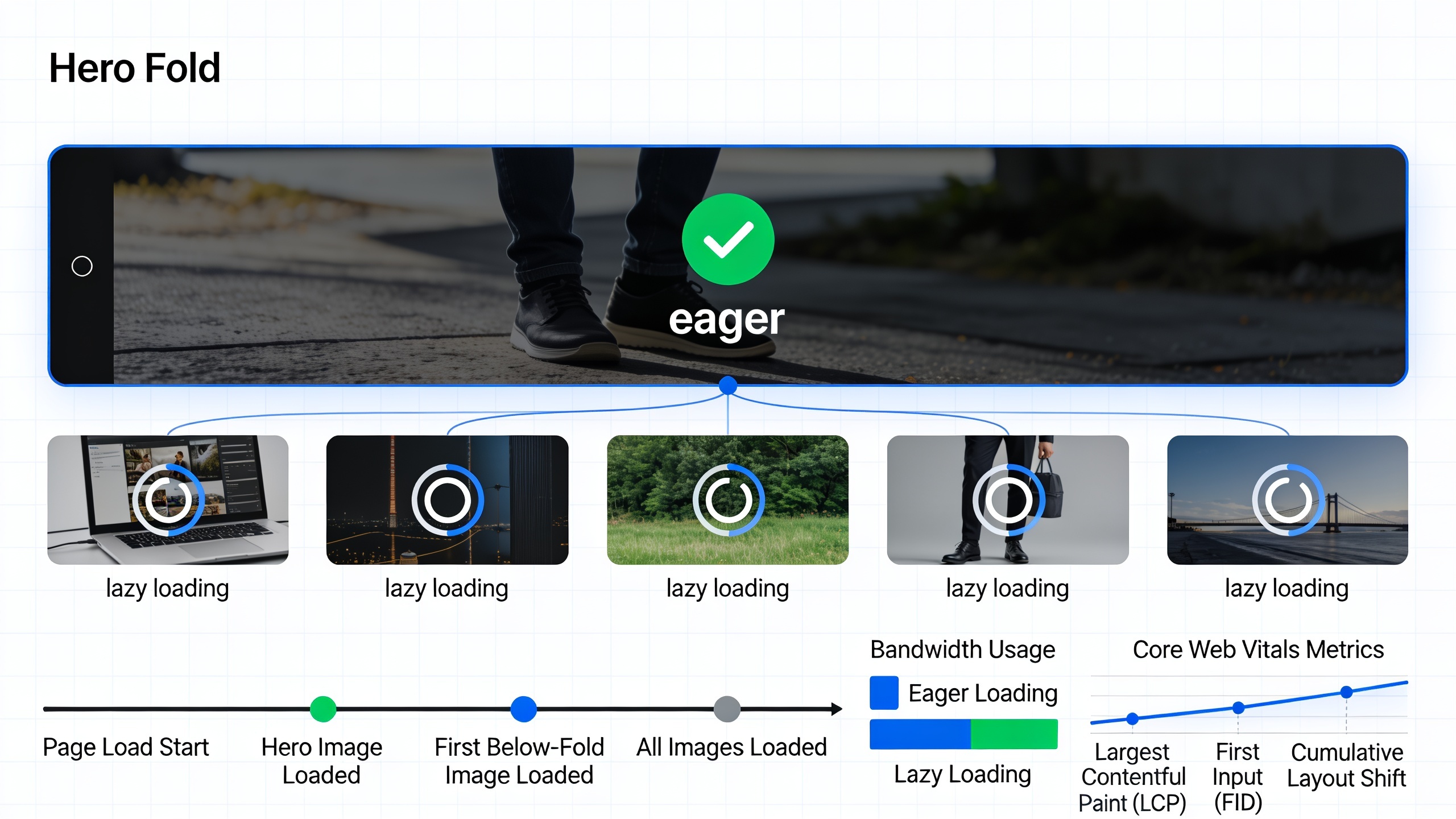
- Don't lazy-load above-the-fold images. Your hero image or the first visible image should load eagerly (`loading="eager"`, or just no lazy attribute at all). Lazy-loading it can actually delay LCP and hurt the exact metric you're trying to fix.
- Pair lazy loading with explicit width and height. Setting dimensions stops the layout from jumping around as images pop in, which protects your Cumulative Layout Shift (CLS) score, another Core Web Vitals metric.
- Test on real devices, not just your desktop. Lazy loading behaves differently on mobile connections, where a huge share of search traffic actually comes from.
- Make sure lazy-loaded images stay crawlable. Crawlers usually render pages and can find lazy-loaded images fine, but sloppy custom lazy-loading scripts (as opposed to the native `loading="lazy"` attribute) have historically caused indexing problems when images never render during a crawl.
The Complete Image SEO Checklist (Quick Reference)
Here's the whole thing squished into one list you can run before publishing any page with images:
- [ ] File name is descriptive, lowercase, and hyphen-separated (e.g., "navy-canvas-backpack.jpg")
- [ ] Alt text describes the image specifically and accurately, under roughly 125 characters
- [ ] Decorative images use empty alt text (`alt=""`)
- [ ] No keyword stuffing across alt attributes on the same page
- [ ] Image resized to its actual display dimensions before upload
- [ ] Compressed using a lossy or lossless tool appropriate to the content type
- [ ] Served in an optimal format (WebP/AVIF where supported, with fallback)
- [ ] Responsive sizes provided via `srcset` for different devices
- [ ] Unnecessary metadata (EXIF, embedded color profiles) stripped
- [ ] Below-the-fold images use `loading="lazy"`; above-the-fold images load eagerly
- [ ] Width and height attributes set to prevent layout shift
- [ ] Images referenced in an XML image sitemap where relevant
- [ ] Surrounding text and captions reinforce the image's topic for added context
Running through this list every time, not just during the occasional audit you keep meaning to do, is what separates sites with real image search visibility from the ones treating images as pure decoration. For teams pushing out a lot of content, baking this checklist into your production workflow or CMS upload process (instead of hoping everyone remembers it) keeps things consistent as more people start adding images. This is also where AI-assisted content platforms like RobinRank fit in: RobinRank is built to automatically write, optimize, and publish high-quality articles for businesses, which means the on-page fundamentals get applied consistently across a growing library rather than riding on whether each individual writer remembered every checklist item by hand.
Frequently Asked Questions
Does alt text actually affect Google rankings?
Alt text is one of several signals Google uses to figure out what an image shows, and it directly affects whether that image can rank in Google Images. Its effect on the ranking of the surrounding text is more indirect, it adds context rather than acting as some heavyweight standalone factor for regular web search. And regardless of any SEO angle, accurate alt text improves accessibility, which is worth doing on its own.
What image format is best for SEO, WebP or JPEG?
WebP generally produces smaller files than JPEG at comparable quality, which helps page speed and, indirectly, your Core Web Vitals-related signals. JPEG is still a safe universal fallback for older browsers that don't support WebP yet. Neither format has a magic ranking bonus baked in from Google, the benefit comes from the speed improvement, not the format name.
How long should alt text be?
There's no hard character limit that search engines enforce, but a practical target is around 125 characters or fewer, since a lot of screen readers truncate longer stuff. Accuracy and specificity matter way more than hitting some exact count, so don't obsess over the number.
Should every image on a page have alt text?
Every meaningful, content-bearing image should have descriptive alt text. Purely decorative ones, spacers, background patterns, repeated icons with no real info, should use an empty alt attribute (`alt=""`) so screen readers skip them instead of announcing something unhelpful.
Does lazy loading hurt SEO?
Native lazy loading with the `loading="lazy"` attribute is generally safe and actually recommended by Google for below-the-fold images because it speeds up initial load. The problems only crop up with badly built custom JavaScript lazy-loading scripts that fail to render during a crawl, or when someone mistakenly lazy-loads an above-the-fold hero image, which slows LCP down instead of helping.
Treat this checklist as a living document, not a one-and-done audit. File naming, alt text, compression, and lazy loading each tackle a different corner of the same core problem: helping both search engines and real people understand and load your visual content without a struggle. Revisit it whenever you redesign a template, migrate a site, or bring a new writer onto the team. The small, consistent habits stack up into measurably better image search visibility and page performance over time. Boring, maybe. But it works.
Ready to stop writing content by hand? Start your free RobinRank trial and get a full month of SEO-optimized articles published on autopilot.